AWS Gateway Load Balancers & Palo Alto VM-Series
For organizations moving to AWS, transitioning to native security services can feel like an operational or security gap. While AWS Network Firewall is a capable tool, it may lack the deep Layer 7 inspection, advanced URL filtering, and ML-powered sandboxing provided by dedicated appliances—features often required for FDIC, HIPAA, PCI-DSS, and other industry compliance.
Bringing your existing Palo Alto, FortiGate, or Cisco platform into AWS is not only feasible but can bridge this gap. Over the next few posts, I will demonstrate how to integrate these platforms into AWS using proven deployment patterns that prioritize both high performance and robust security.
Why use the Gateway Load Balancer (GWLB)? Before the GWLB, there was no native way to "transparently" intercept traffic for inspection. Engineers were forced into inefficient workarounds: building complex IPsec VPN overlays—limited to 1.25 Gbps per tunnel—deploying firewalls in every spoke VPC at an exorbitant cost, or building monolithic "sandwich" architectures that were a nightmare to scale. These methods always involved a trade-off between visibility, speed, and cost.
In 2020, AWS introduced the GWLB to solve this. Using the GENEVE protocol (UDP port 6081), the GWLB encapsulates the original packet, preserving the source and destination headers. It utilizes the AWS backbone to steer traffic to your firewall and ensures flow symmetry. From a data-flow perspective, it is a "bump-in-the-wire" that provides enterprise-grade inspection without the legacy bottlenecks.
In this post, we will deploy the Target Group, GWLB, Endpoint Service, and Endpoint in AWS. From there, we will configure the VM-Series to support the GENEVE protocol and build policies to inspect simulated workload traffic.
I won’t be covering the initial VM-Series EC2 deployment today—that deserves its own dedicated post to properly explore the various bootstrapping and deployment options available.
In the meantime, you can find the official reference for the management swap and general deployment here: Palo Alto VM-Series AWS Launch Guide.
The following details the VPC subnets and route tables used in the example.
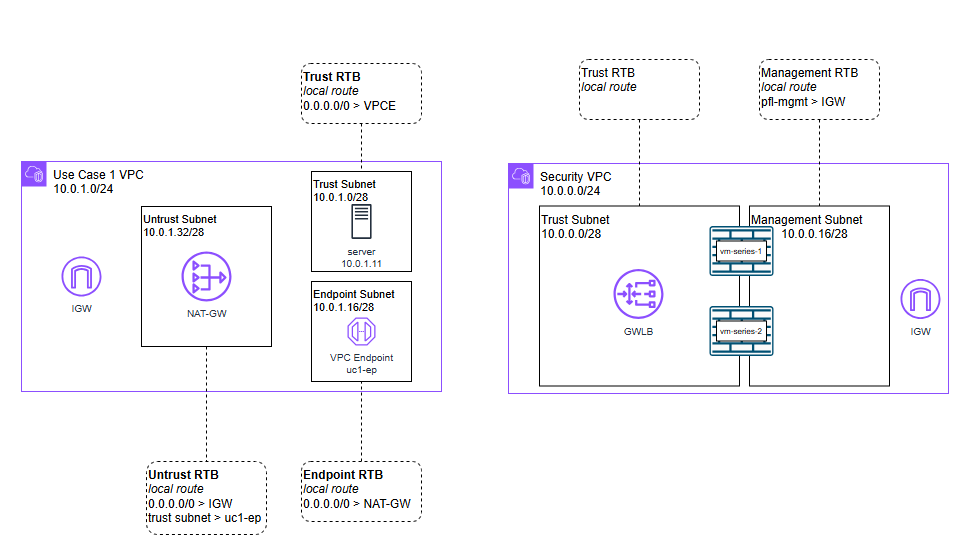
Security VPC
This houses the VM-Series and the GWLB. It requires two subnets: one for management and the other for the GWLB traffic (called Trust in this exercise).
Management Subnet and Route Table:
- 0.0.0.0/0 pointing to the Internet Gateway (IGW)
Trust Subnet and Route Table:
- Local route only
Workload VPC
This is where your applications live. We use three distinct subnets to manage the "Bump-in-the-Wire" flow:
Endpoint Subnet and Route Table: Houses the GWLBe.
- 0.0.0.0/0 points to NAT-G
Trusted Subnet Subnet and Route Table:Where your private EC2 instances reside.
- 0.0.0.0/0 points to the GWLB Endpoint (GWLBe)
Untrusted Subnet and Route Table:Houses your NAT Gateway.
- 0.0.0.0/0 points to the Internet Gateway
- 10.0.1.0/28 points to the GWLBe
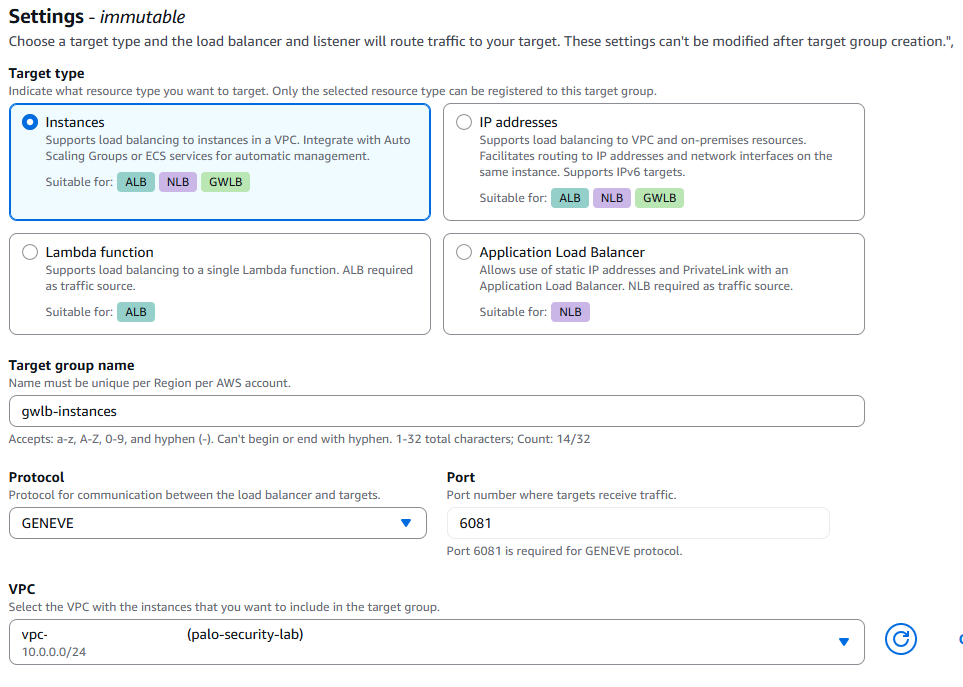
Navigate to EC2 > Target Groups and create a new group. Select Instances as the target type, GENEVE as the protocol, and name it.
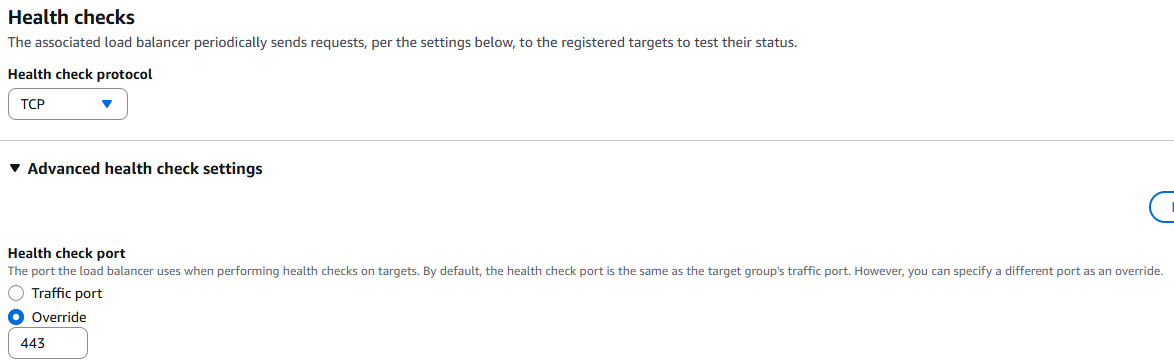
Under Health Checks set it to TCP and expand the advanced settings, set the health check port to override and then to port 443. The other settings can stay default, select next at the bottom of the page.
Select the instances you wish to include in the GWLB, select include as pending below then select next at the bottom of the page. If using IP manually add the IPs instead and include as pending.
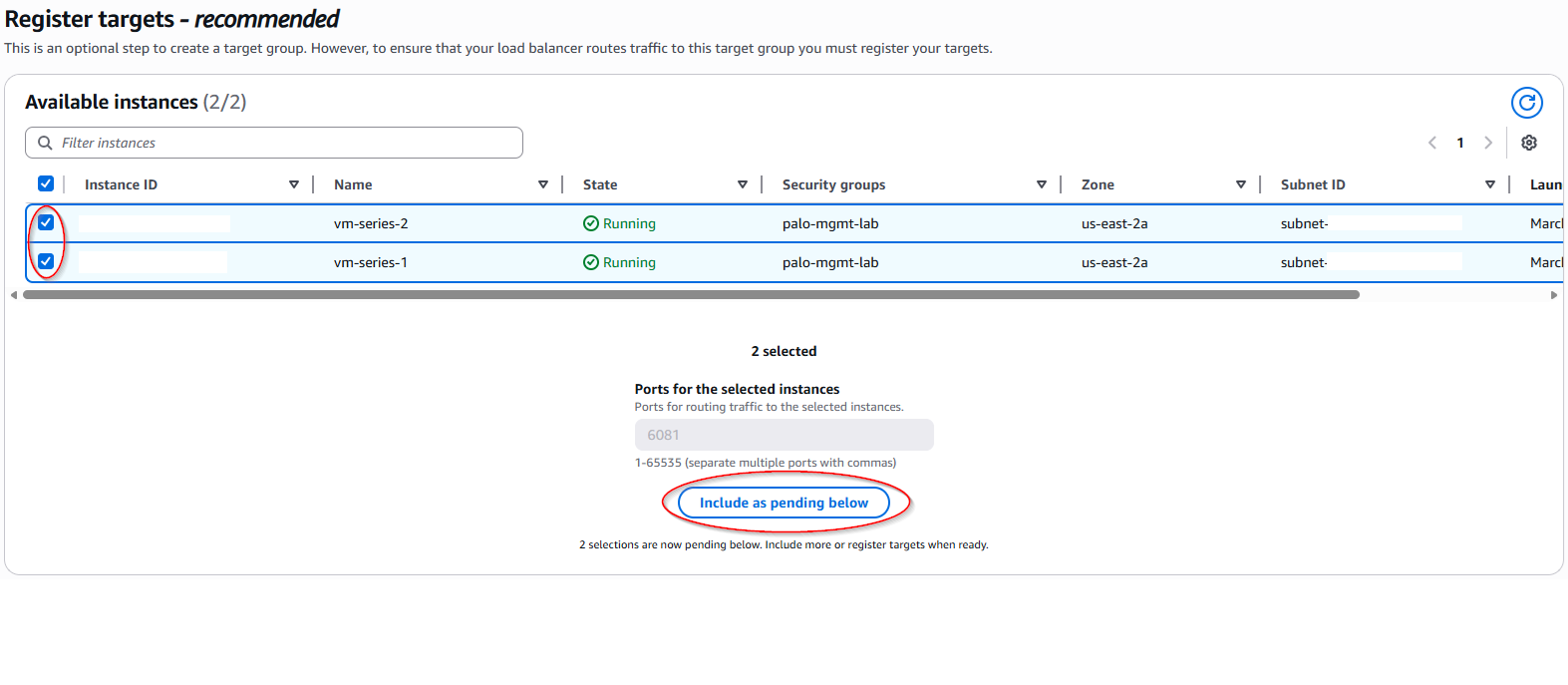
The review settings should populate, check to ensure your settings are correct then select create target group.
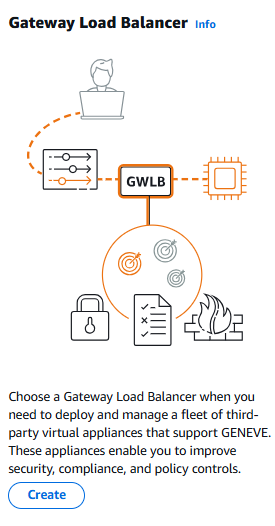
Head to EC2 > Load Balancers and select create a load balancer. Select Gateway Load Balancer for your type to create.
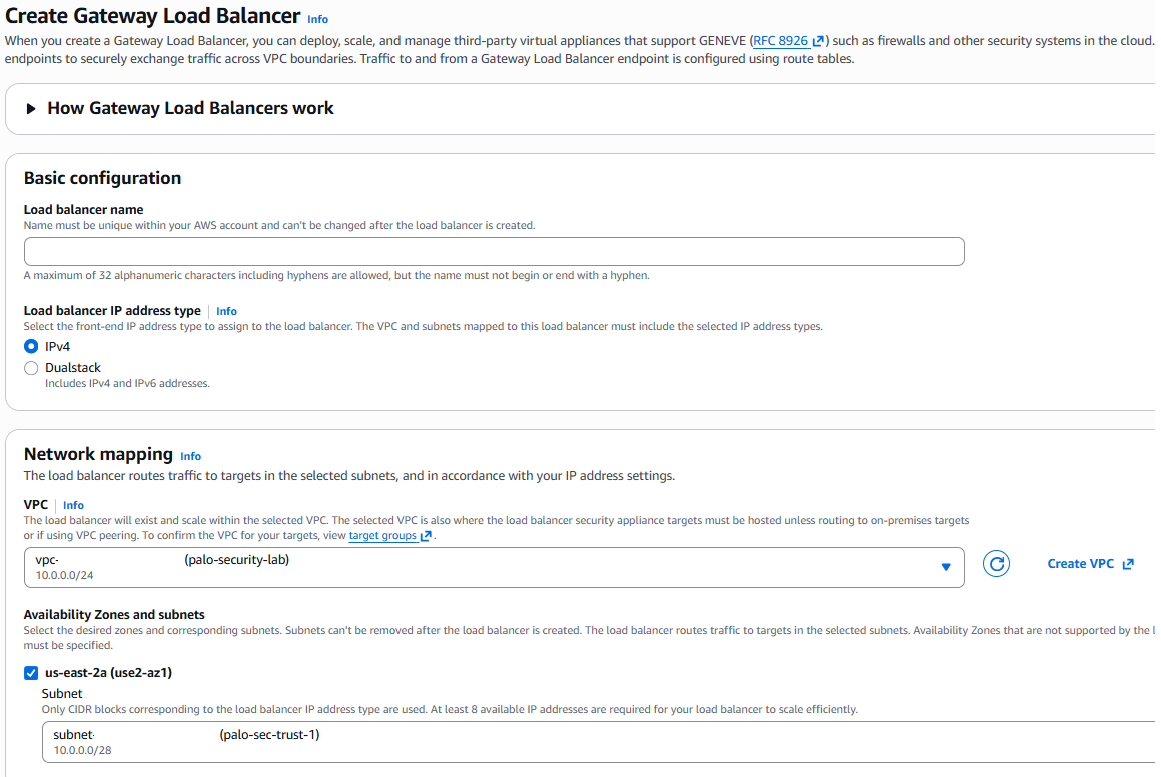
Name your GWLB, Select your VPC that you want to house your GWLB. In our lab this is the palo-security-lab VPC.
Select the availability zones you want your endpoints to be available in.
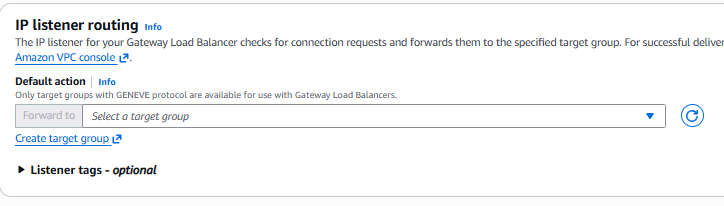
Under IP listener routing add the target group from earlier then select create load balancer at the bottom.
Now that we have the GWLB we need an endpoint to point the traffic to. Navigate to VPC > Endpoint Services and create an endpoint.Give it a name, select Gateway as the load balancer type, then select the GWLB you just created. If you intend on multi-region then you need to select the supported regions but we are staying in one region in this example. Finally select the support IP types then select create at the bottom right.
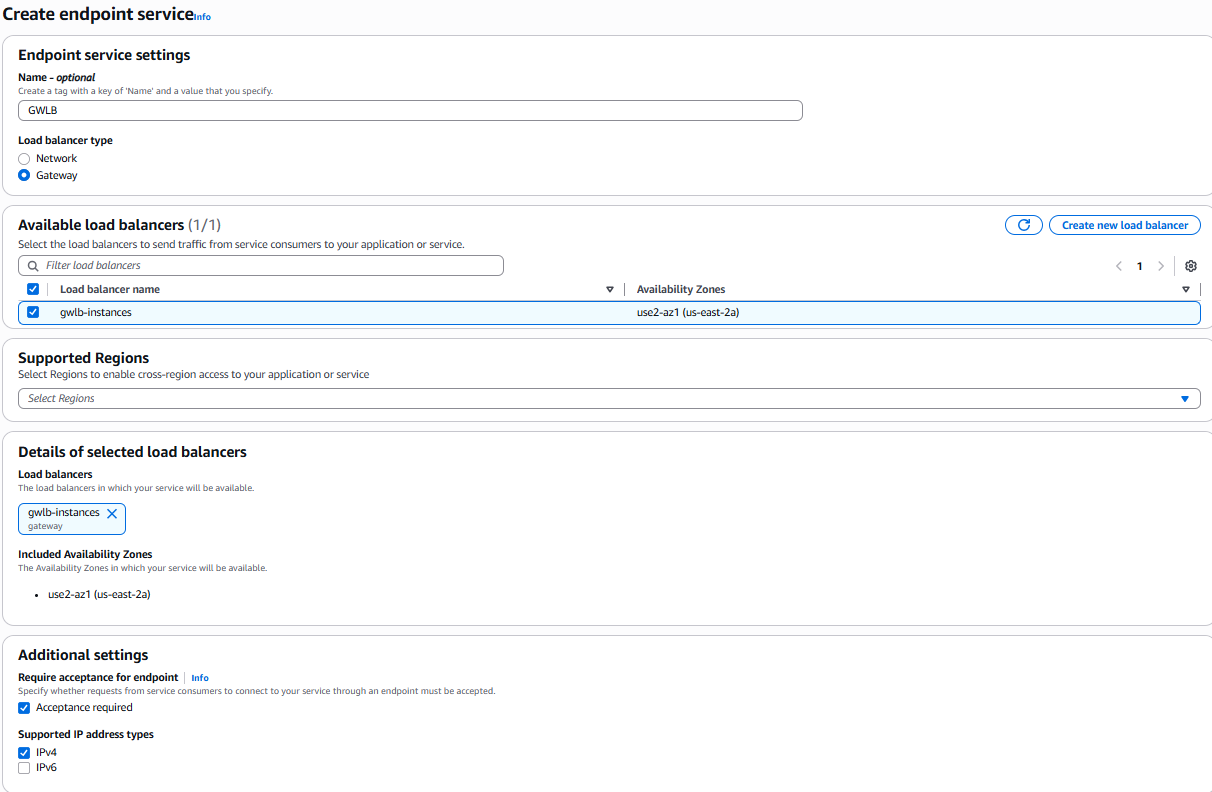
Once it is created you will need the service name that shows under the endpoint service, it will start with com.amazonaws.vpce
Now we make the endpoints themselves. This does not need to be in the same account, just the region and az.
Select endpoints and create endpoint. Name your endpoint then select "Endpoint services that use NLB and GWLBs" as your type. Paste the service name from earlier into the service name and verify.
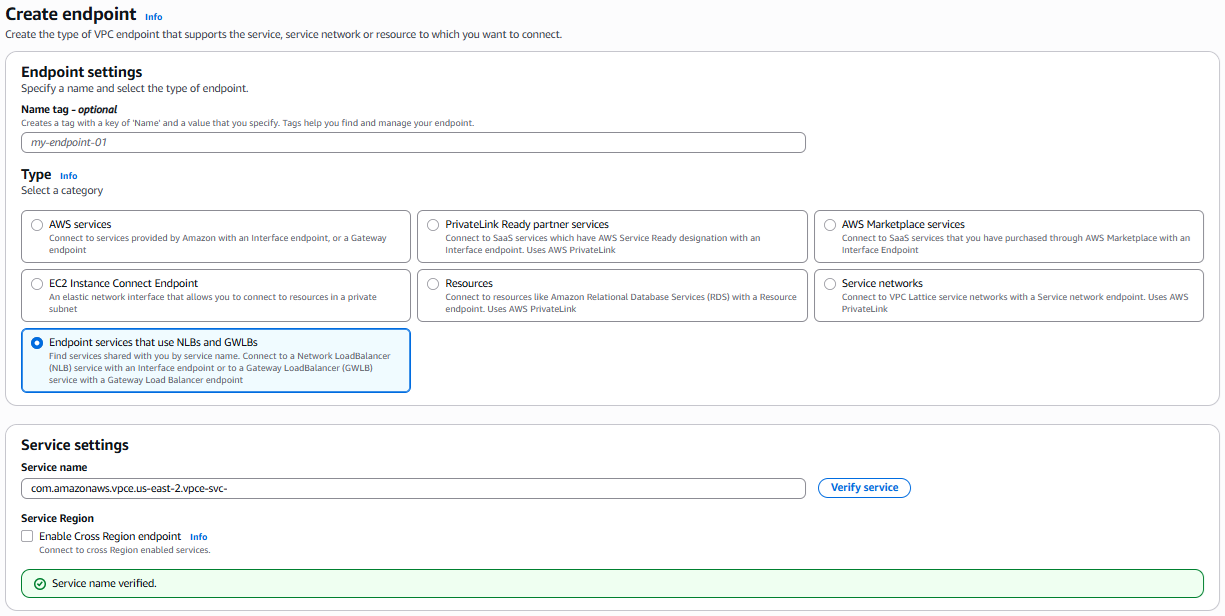
Once verified you can select your VPC you want your endpoint and it will show the available AZs you can deploy the endpoint, select the ones you want and select create endpoint.
The default in Endpoint service creation is to require acceptance, under the service you should see a pending acceptance for your new endpoint, accept it with the actions menu.
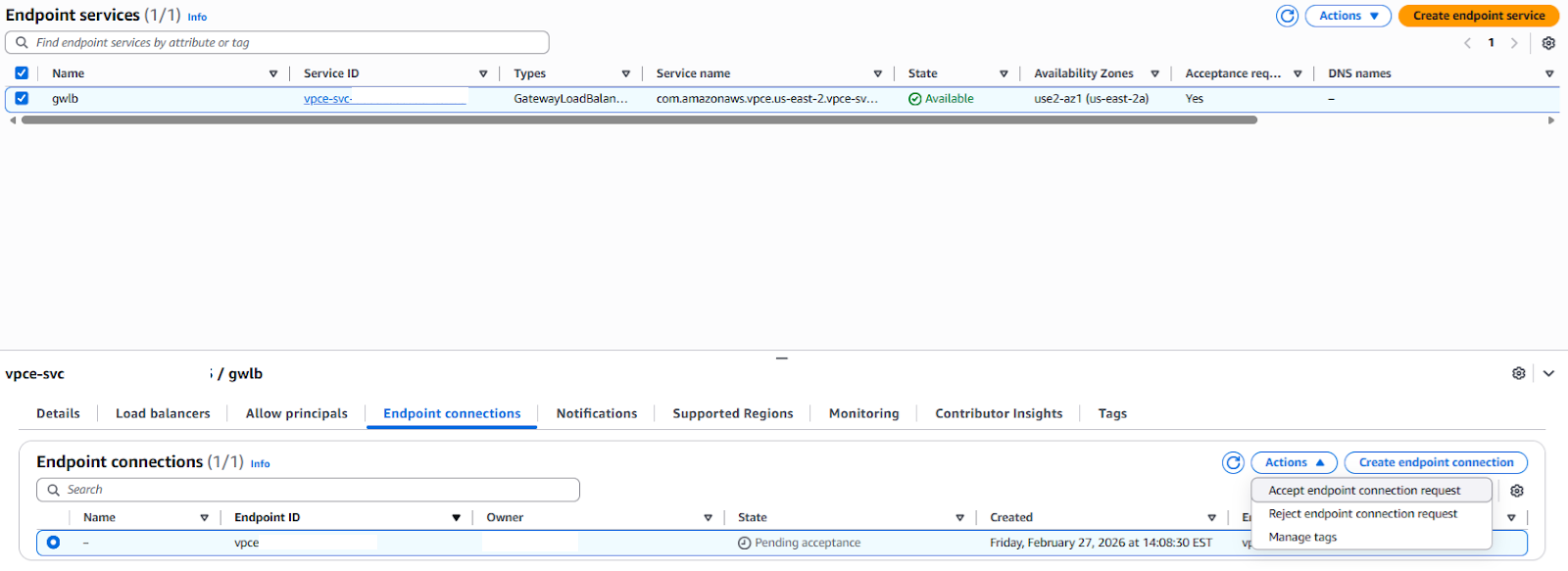
Now the Target Group, GWLB, Endpoint Service, and Endpoint is configured we need to allow the VM-Series to communicate to the GWLB via GENEVE and allow for the health checks on its ethernet1/1 interface. This will need to be done on each appliance.
Create a layer3 zone and add Ethernet1/1. For the naming I stick to the Palo examples and name it trust.
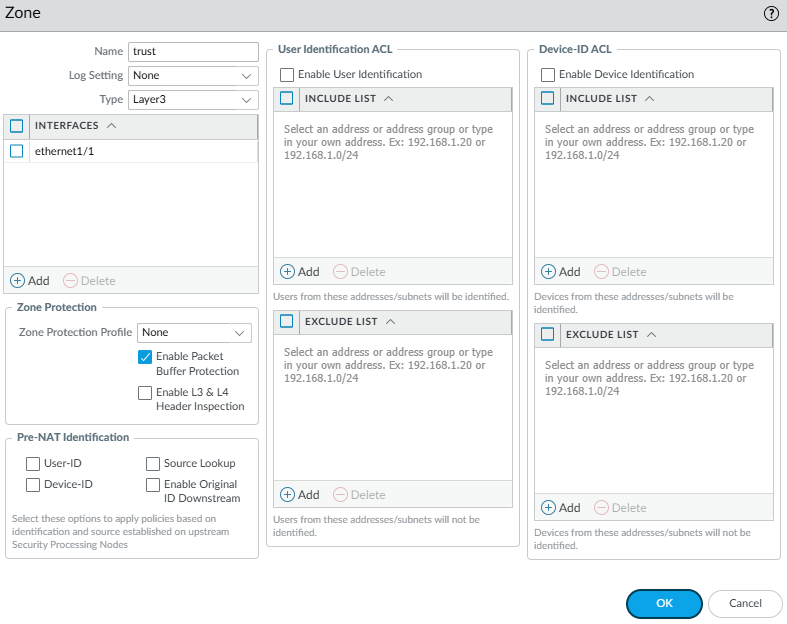
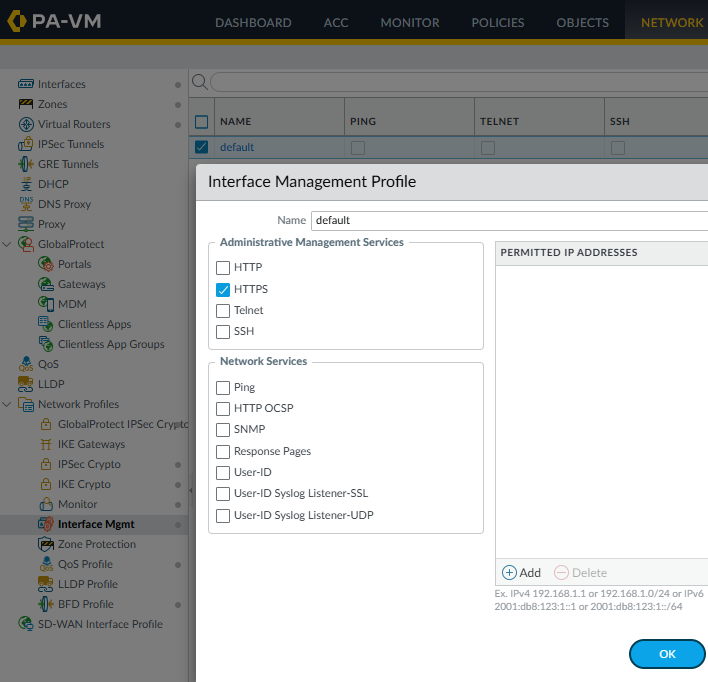
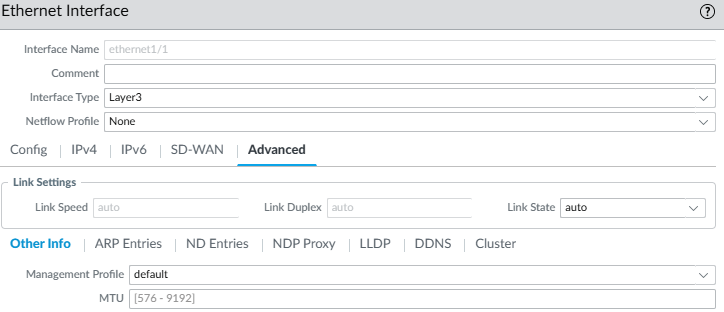
In Ethernet1/1's advanced section add a management profile to it that allows https I named mine in this example default. In the profile you can also limit the permitted traffic to the actual GWLB itself so nothing else can use those management ports.
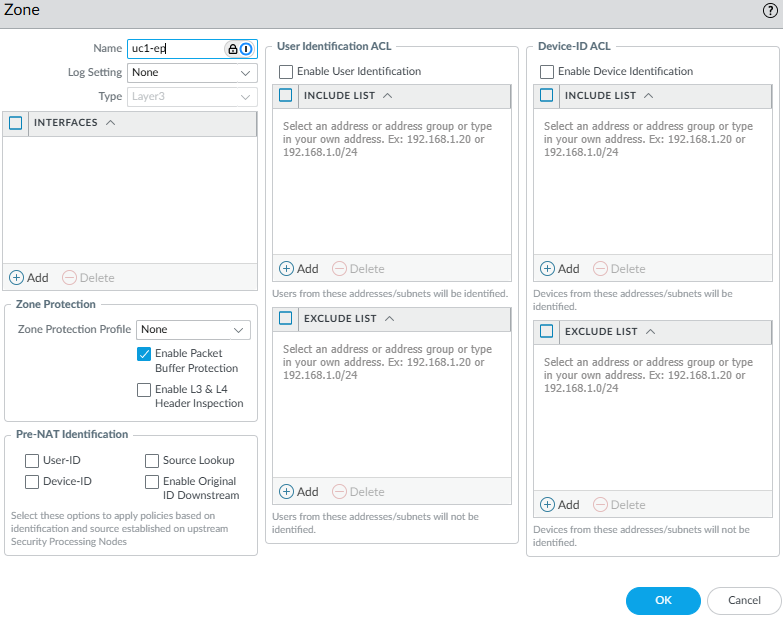
Create a Zone for the sub-interfaces to go in.
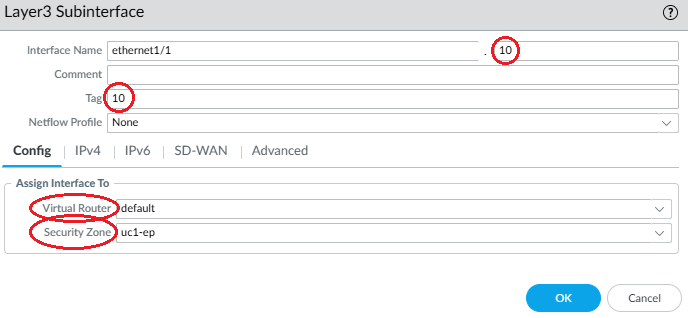
Create the sub-interface under the GENEVE facing interface, which in this lab is ethernet1/1. Give the sub-interface a number and a tag number. The sub-int number and tag do not need to match but its easier to keep them consistent. Set the Virtual Router(VR) to your desired VR, preferably the same VR, and set it to the zone created for the interface.
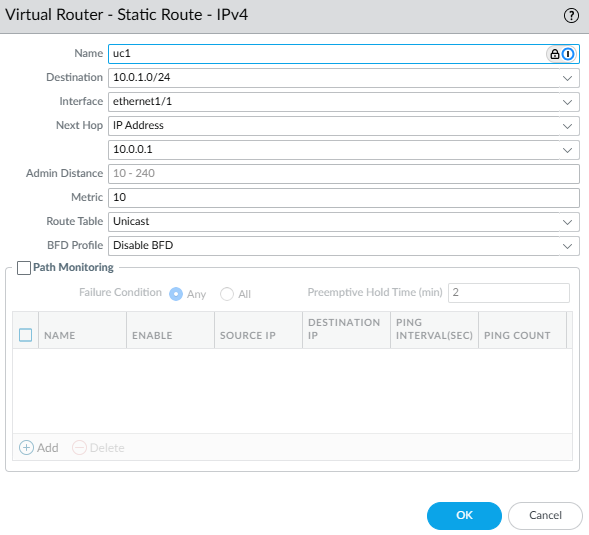
The VR will need a route to the destination. If the trusted interface is DHCP you wont need to add a static route but if the address is statically set you will need to do so.
Next you will need to SSH into your VM-Series appliances or set this is in bootstrap during deployment to associate your endpoints to the sub-interface just created. Once logged in via SSH do not go into configure mode stay in operator mode with the ">" .
This command turns on the GENEVE capability:
request plugins vm_series aws gwlb inspect enable yes
This associates your endpoint with your sub-interface:
request plugins vm_series aws gwlb associate vpc-endpoint <vpce-id> interface <subinterface>
This validates the information you put in:
show plugins vm_series aws gwlb
If you made a mistake you can always remove the association with
request plugins vm_series aws gwlb disassociate vpc-endpoint <vpce-id> interface <subinterface>

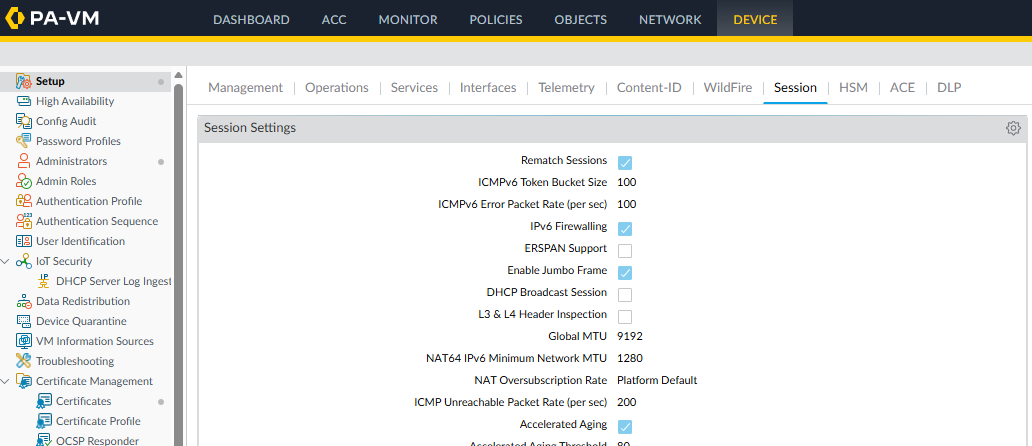
GENEVE encapsulates your traffic and can exceed the standard 1500 MTU. It is not required but advised to enable jumbo frames so the payload size of 1564 does not get fragmented. To enable navigate to device > setup > session and edit session settings and select enable jumbo frames.
Now you will need to add a policy to allow the GENEVE traffic and the TCP 443 coming from your GWLB.
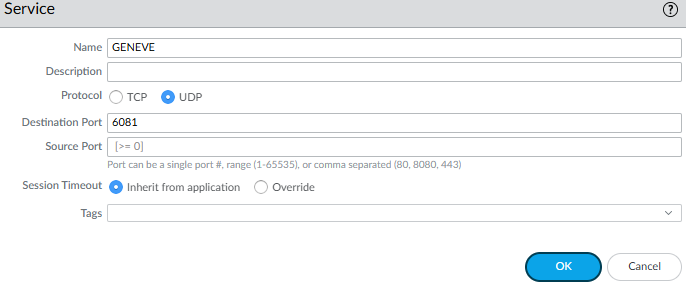
Create a GENEVE service under objects > services for UDP 6081
Then create a policy allowing GENEVE and service-https
Source zone: trust
Source address: your gwlb, in this I just used the VPCs CIDR but it could be more specific.
Destiantion zone: trust
Destination address: your ethernet1/1, in this lab I just used any
Application: any
Service: https-service, GENEVE

ACK - Testing
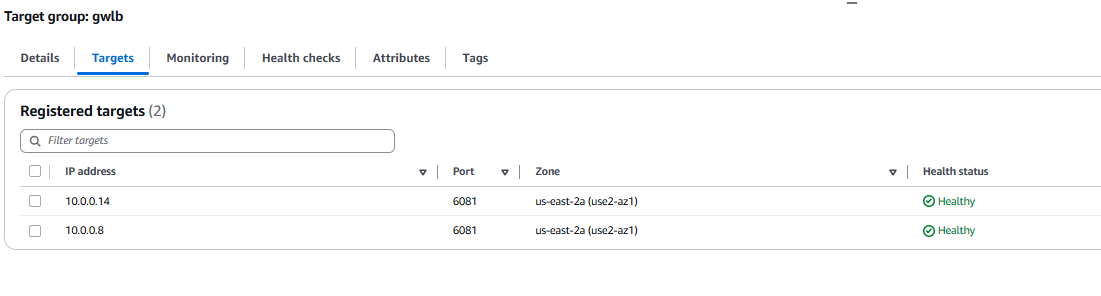
At this point the GWLB's target group should show healthy.
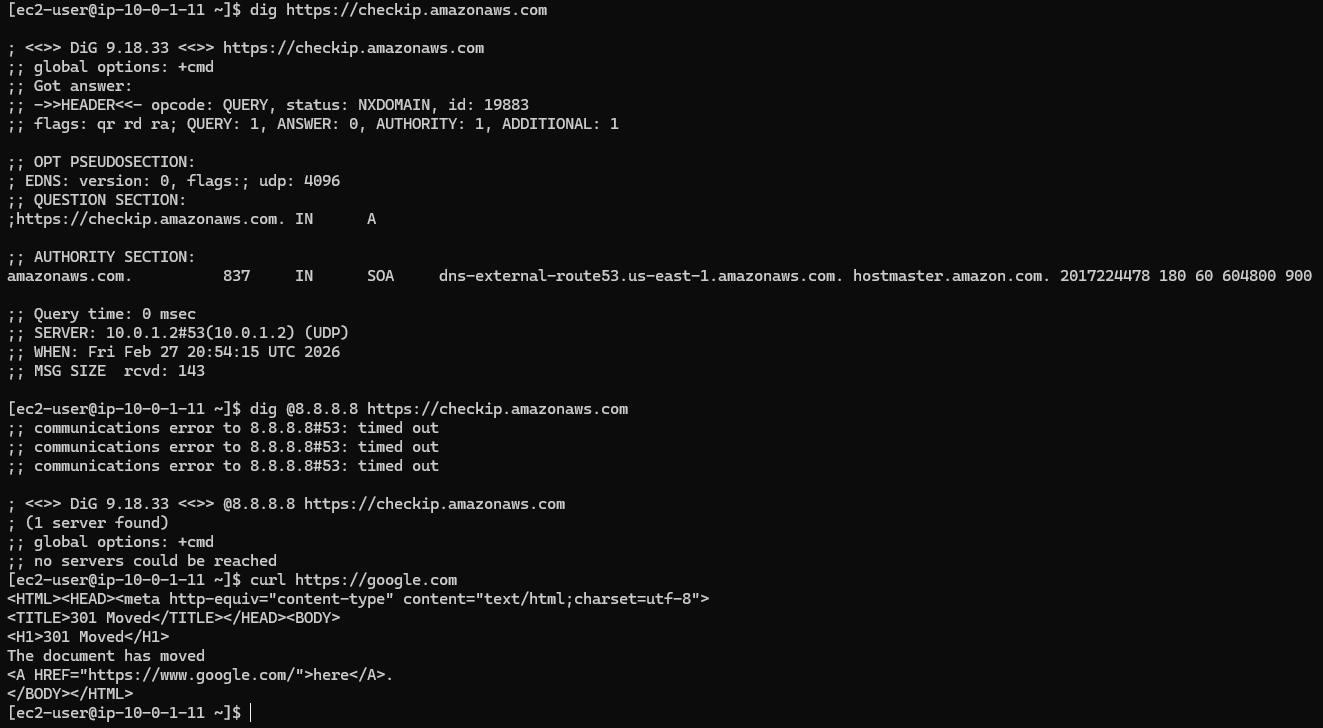
You will need to add other policies to allow traffic traversing the endpoints. In the below example I have an implicit deny and a rule to allow https. AWS has local DNS server per subnet that are used by default so I don't need to allow DNS outbound.

Here in the logs it shows my traffic coming in and out of the endpoint.

And here is the generated traffic to checkip.amazonaws.com.
With this deployment, you can see how a VM-Series—or any firewall supporting the GWLB—can be distributed across AWS with a significantly smaller operational footprint. While advanced features and design tweaks can alter specific aspects of the architecture, the core remains the same: a firewall sitting behind a GWLB, transparently inspecting traffic from endpoints.
In the next segment, we will see how to centralize these endpoints in a larger environment using a Transit Gateway (TGW) as the connectivity hub. Until next time.
If your organization is navigating a complex cloud migration or requires assistance with high-performance security architecture, you can find me and my team at Veritium.